
The user journey
Ten steps, from sign-up to follow-up
The prototype follows the same ten steps a learner takes through the ANTLION online journey, from creating an account to follow-up and repeat booking.
Step 01
Sign Up / Sign In
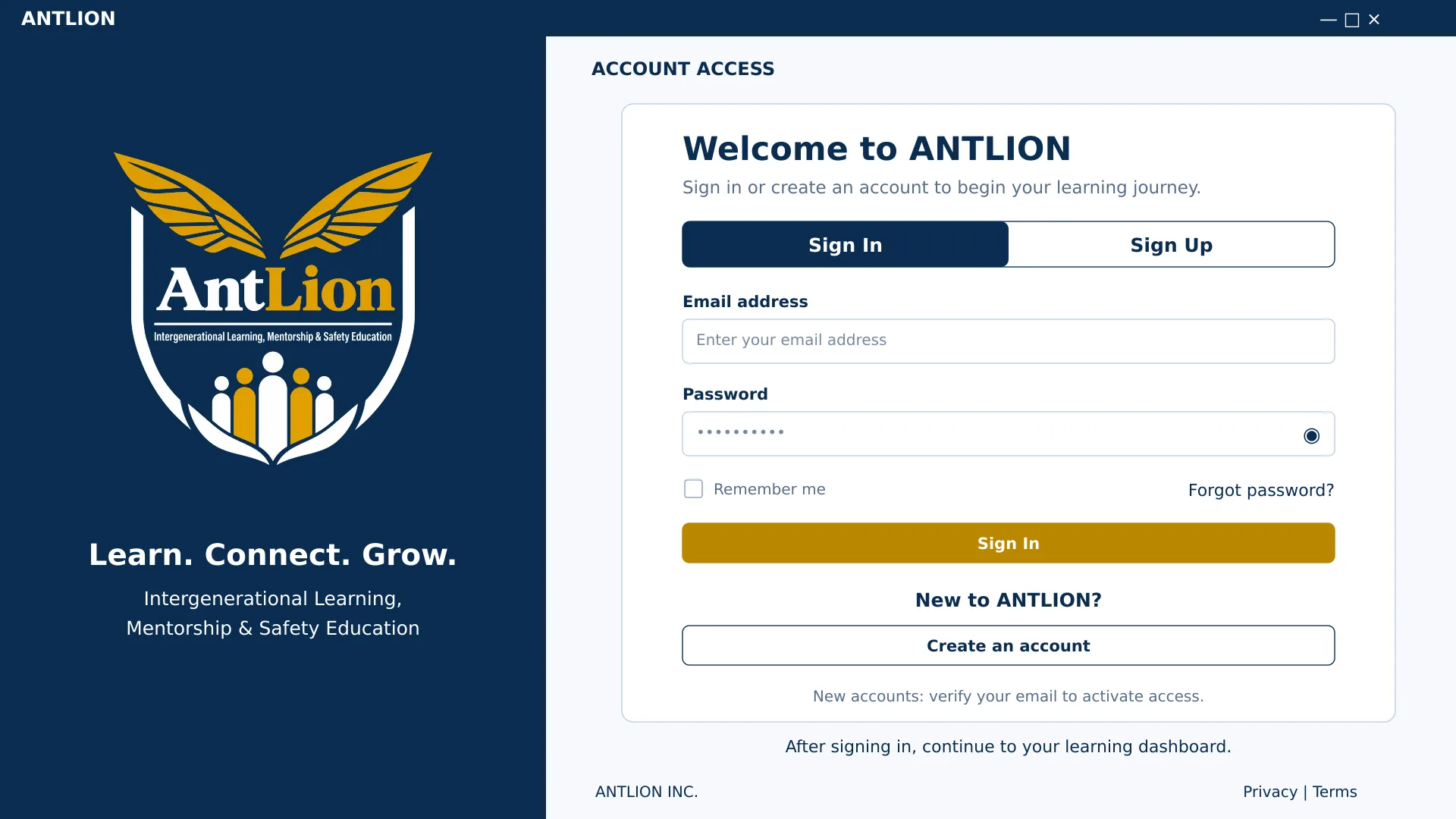
New users select Sign Up, enter their name, email address and password, and complete email verification. Existing users access their accounts through Sign In. A Forgot Password option allows users to recover access. After successful login, the user is directed to the homepage.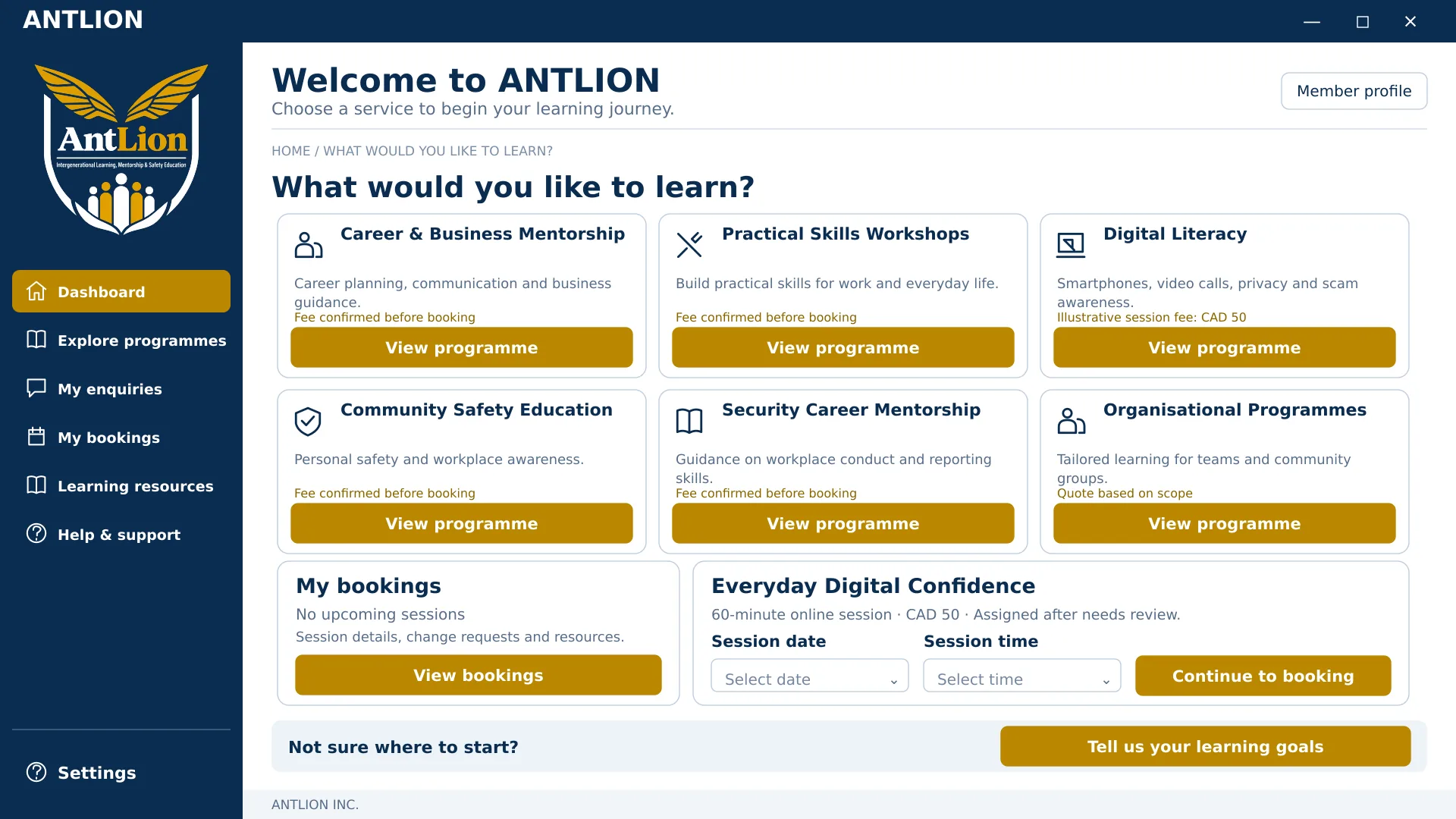
Step 02
Homepage / Service Selection
The homepage displays ANTLION’s six service categories: Career & Business Mentorship, Practical Skills Workshops, Digital Literacy, Community Safety Education, Security Career Mentorship and Organisational Programmes. Each service includes a View Programme button. Individual customers can review a service and proceed to the enquiry form. Selecting Organisational Programmes opens the separate pathway described in Step 10. Users can also access existing records through My Enquiries, My Bookings and Learning Resources.
Step 03
Learning Needs / Enquiry
The user provides their selected service, learning goals, preferred delivery method, preferred dates and any optional accessibility or support requirements. Their name and email address can be prefilled from their account. Selecting Send Enquiry submits the request to ANTLION and displays an acknowledgement. No payment is required at this stage. ANTLION’s team reviews the requirements, programme suitability and facilitator availability. Additional information may be requested before a recommendation is prepared.
Step 04
Recommended Programme
Following the review, the user receives a suitable programme recommendation. This screen displays the programme scope, learning objectives, duration, delivery format, facilitator information, fees and available scheduling options. The user can select Ask a Question for clarification or Continue to Booking to proceed. A notification is sent when the recommendation is ready. Submitting an enquiry does not automatically produce an approved programme.
Step 05
Booking & Payment
The user selects an available date and time, checks their contact details and reviews the programme fees, applicable taxes and total amount. After accepting the booking and cancellation terms, the user selects Confirm and Pay. The booking becomes confirmed once payment is verified and the selected session is secured. Failed payments provide a retry option. Pending payments remain clearly identified and do not appear as confirmed bookings.
Step 06
Booking Confirmation
The confirmation screen displays the booking reference, programme name, confirmed date and time, delivery format and relevant instructions. A confirmation email is also sent. Available actions include Add to Calendar, View Joining Instructions and Request a Booking Change. The booking remains accessible through My Bookings.
Step 07
Session Joining & Learning Resources
For online delivery, the user selects Join Online Session to access the scheduled meeting. For in-person delivery, the system displays the venue and arrival instructions. Users can download relevant materials, including the Session Guide and Practice Checklist. A Need Help Joining? option provides access to support. After session delivery and completion are recorded, the feedback option becomes available.
Step 08
Feedback & Outcomes
The user provides an overall rating, responses relating to the learning objectives and optional comments. They can also request further support. Selecting Submit Feedback saves the response against the relevant booking. ANTLION reviews this information to improve programme delivery and identify follow-up needs. Learning outcomes reflect recorded activities and participant-reported progress.
Step 09
Follow Up / Repeat Booking
The user can revisit learning materials, select Request Another Session, or choose Explore Programmes to view other services. A follow-up request may be prefilled with details from the previous programme. ANTLION reviews any changed requirements and confirms the fees and availability for further sessions. There is no automatic subscription or renewal within this workflow.
Step 10
Organisational Programme Enquiry
This pathway serves employers, community organisations and senior-living operators. The organisation’s contact selects Organisational Programmes from the homepage and submits the organisation name, contact details, programme topic, participant numbers, learning objectives, preferred dates and delivery location. After Request a Tailored Proposal is selected, ANTLION discusses the requirements and prepares a proposal covering scope, schedule, fees and payment arrangements. The organisation can accept the proposal or request changes. The organisational workflow is: Enquiry → Needs Discussion → Tailored Proposal → Acceptance and Payment Arrangements → Programme Delivery → Feedback / Renewal.
Reviewed by staff first: every enquiry is reviewed by ANTLION’s team — requirements, programme suitability and facilitator availability — before a programme is recommended. Submitting an enquiry does not automatically produce an approved programme.
Open the Prototype DemoThis button opens the demo prototype, not the live booking system. No real payment is involved.
The mobile prototype
The mobile journey, screen by screen
Each of the twelve mobile screens, with a short note on what it does. The same ten-step journey, shown on a phone.
Watch the mobile prototype

Screen 01 · Step 1
Sign Up
Create a new account with your name, email address and password, then complete email verification.

Screen 02 · Step 1
Sign In
Existing users sign in to their account, with a Forgot Password option to recover access.

Screen 03 · Step 2
Dashboard
The homepage shows the six service categories, each with a View Programme button, plus My Enquiries, My Bookings and Learning Resources.

Screen 04 · Step 3
Learning Goals
Tell us your selected service, learning goals, preferred delivery method and dates, plus any support requirements.
Screen 05 · Step 3
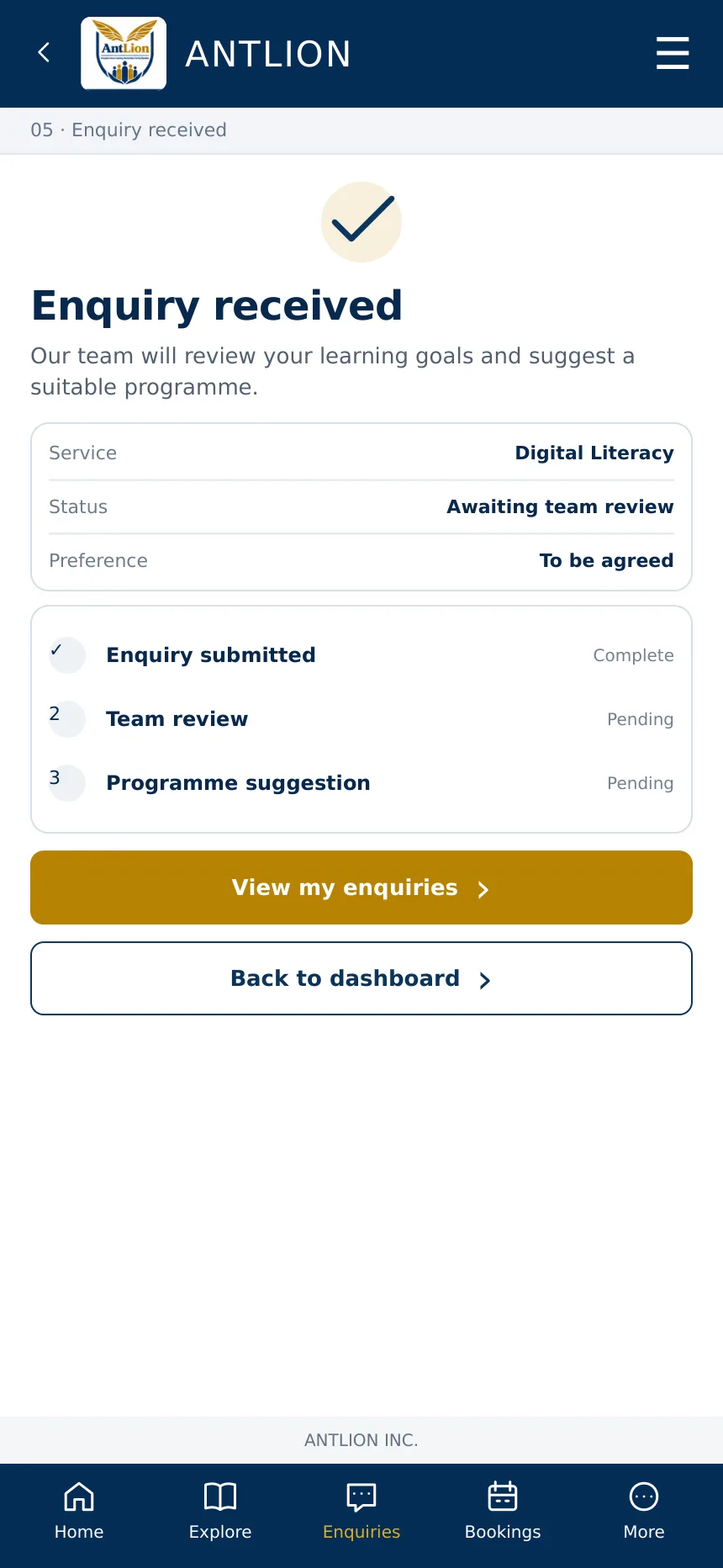
Enquiry Received
Your enquiry is sent to ANTLION and acknowledged. No payment is required at this stage; the team reviews it first.

Screen 06 · Step 4
Reviewed Programme
After review, you receive a programme recommendation with its scope, objectives, duration, format, facilitator and fees.

Screen 07 · Step 5
Review Booking
Choose a date and time, check your contact details, review the fees and total, then confirm and pay.
Screen 08 · Step 6
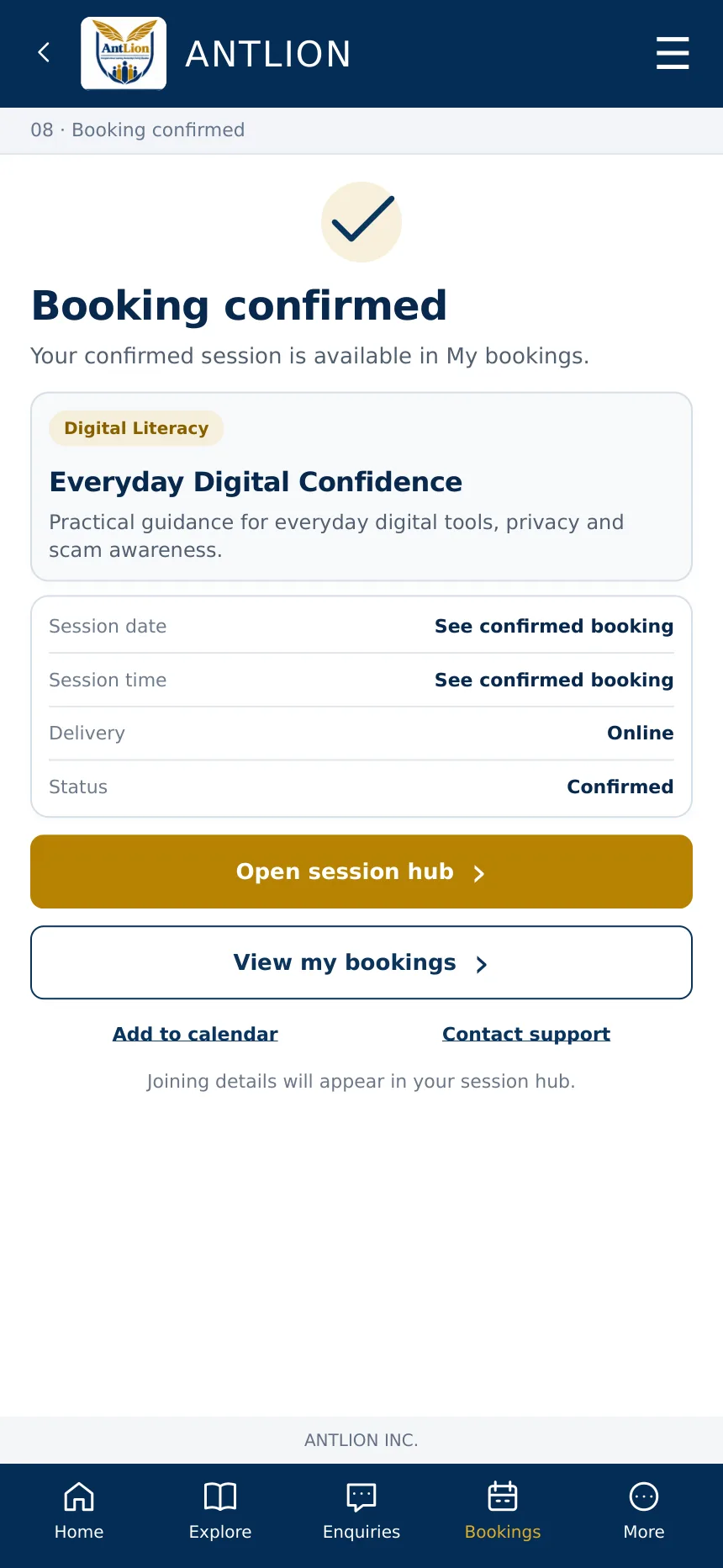
Booking Confirmed
The confirmation shows your booking reference, programme, date and time, delivery format and instructions.

Screen 09 · Step 7
Session Hub
Join your online session, or see the venue and arrival instructions for in-person delivery, and download your materials.

Screen 10 · Step 8
Session Feedback
Rate the session, answer questions about the learning objectives and add optional comments.
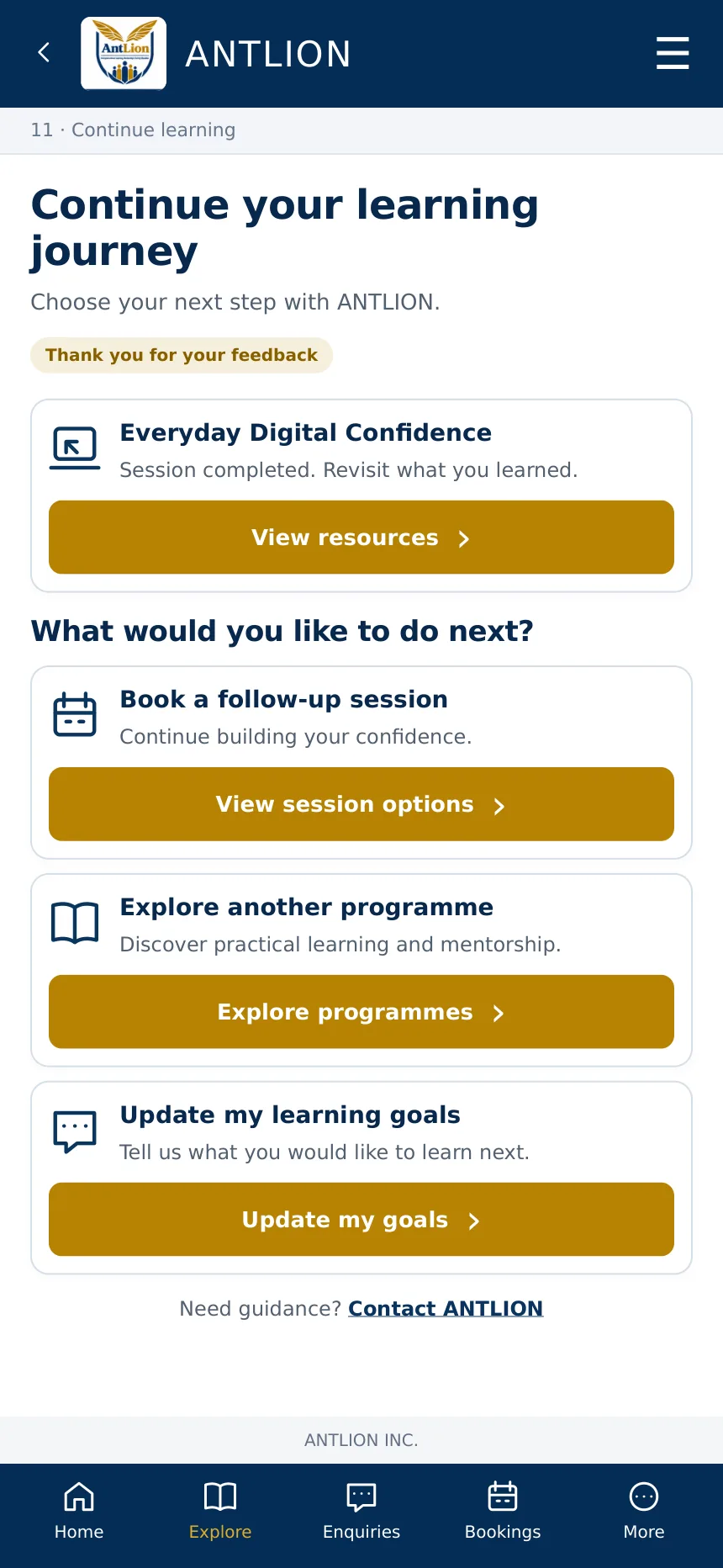
Screen 11 · Step 9
Continue Learning
Revisit your learning materials, request another session or explore other programmes.

Screen 12 · Step 10
Organisational Enquiry
For employers and organisations: submit your details and request a tailored proposal.